
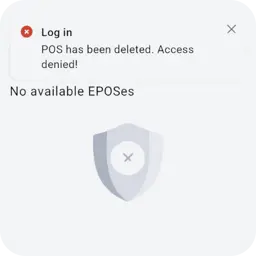
"POS has been deleted. Access denied"
Your agent point (POS) is no longer active, so the app cannot open it. You cannot fix this in the app. Contact your manager.
More in the agent guideThere is no public sign-up for the MobCash agent app. Your login comes from your manager, after you are approved. This page explains your first login, device activation, what to do if you forget your password, and how to fix the most common errors.
Are you a player? Player accounts (betting, deposits, withdrawals, password) are on the RolsBet site, not in the agent app. Agents and managers cannot see or fix a player account. Go to rolsbet.com
You do not create an agent account yourself. Your regional manager gives you the app and your login after approval. The order is always the same.
Nobody can give you a working agent login before approval. If someone sells you a login or the app, it is a scam.
On the Apply page you leave your name and your phone or Telegram.
Your regional manager calls or writes to you, explains the rates and answers your questions.
Your manager sends you a personal invite link to the verification form.
Through that link you add your ID and a selfie, with your manager's help.
The security team checks your application. Your manager tells you the result.
After approval, your manager sends you the agent app and your login details in the same chat. Nobody else sends them.
Install the app your manager sent you on your Android phone. Then follow these steps.
Open the app. Enter the login and password your manager gave you.
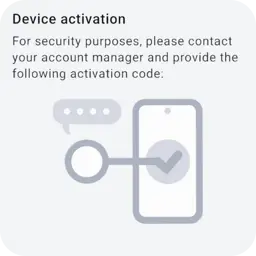
On a new phone the app shows a Device activation screen with a code.
Send this code to your own manager in your chat. Your manager uses it to activate your phone.
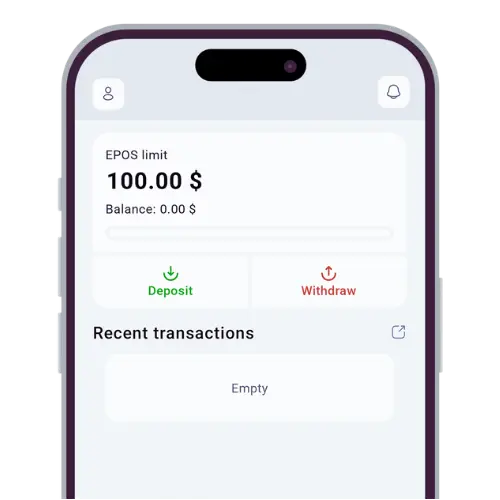
When the phone is active, you see your home screen: your limit, your balance and your recent transactions.
Moving to a new phone? Talk to your manager first. The new phone may ask for activation again.
Before you start: the agent guideOnly your own manager can help you get back into your account. There is no public password reset page for agents.
Check the handle on the Verify manager page before you reply.
These are real screens from the agent app. Find the one you see and follow the fix.
Your agent point (POS) is no longer active, so the app cannot open it. You cannot fix this in the app. Contact your manager.
More in the agent guide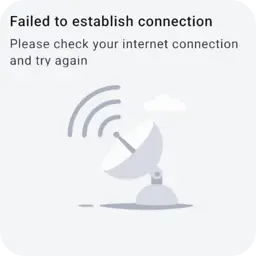
The app cannot reach the server. Check your mobile data or Wi-Fi and try again. Take no cash from players while the app is offline.
More in the agent guide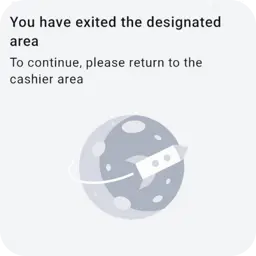
The app works only in your cashier area. Go back to your usual place of work and try again. Want to work from a new place? Ask your manager first.
More in the agent guideYou signed in on a new or reset phone. Send the code on the screen to your manager and wait until the phone is activated.
More in the agent guideCheck the login and password your manager sent you, letter by letter. Still not working? Write to your manager. Never ask strangers for help.
Write to official support. Never put your password in the message.
Leave your contact on the Apply page. Your regional manager will contact you and help you through every step, up to your first login.